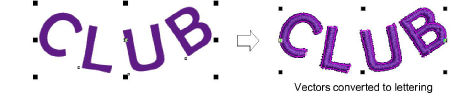
Convert objects with CorelDRAW Graphics
 | Use Mode > Tag Fill as Turning Satin to tag narrow shapes for conversion to turning stitching. |
|---|---|
 | Use Mode > Match to Embroidery Palette to toggle on/off thread color matching for converted vector objects. |
 | Use Mode > Tag as Photo Flash to convert photos to Photo Flash embroidery from CorelDRAW Graphics. |
 | Use Mode > Convert Embroidery to Graphics to convert selected embroidery to graphics and switch to CorelDRAW Graphics. |
 | Use Mode > Convert Graphics to Embroidery to convert selected graphics to embroidery and switch to Wilcom Workspace. |
 | Use Mode > Keep Graphic Objects to retain original artwork during conversion. |
Some EmbroideryStudio product levels include CorelDRAW® Graphics Suite as standard. This lets you convert vector objects directly to embroidery objects via CorelDRAW Graphics. You can also convert embroidery to vector objects. Individual objects or whole designs can be converted. Bitmaps can also be used.
To convert graphic and embroidery objects...
- Open a vector or embroidery design, depending on which mode you are working in – CorelDRAW Graphics or Wilcom Workspace.
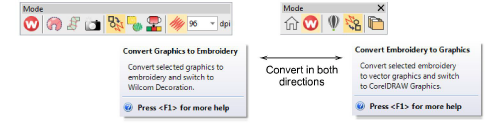
The Convert function is located on the Mode toolbar. Behavior depends on the operating mode:
- In CorelDRAW Graphics, selected vector objects are converted to embroidery and displayed in Wilcom Workspace.

- In Wilcom Workspace, selected embroidery objects are converted to vector objects and displayed in CorelDRAW Graphics.
- If you want to keep a copy of the original vector objects, click the Keep Graphic Objects toggle in CorelDRAW Graphics.
- Use the Match to Embroidery Palette tool to toggle on/off thread color matching.
- When turned on, converted vector objects are assigned the nearest matching thread color in the current color palette.
- When turned off, a new thread color is added to the palette based on the vector color.
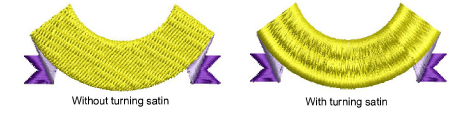
- Optionally, activate Tag Fill as Turning Satin. This produces a branched object as shown below.
TIP
Vectors can also be converted to appliqué as well as to lettering. See also Creating lettering with CorelDRAW Graphics.