Apply styles
 | Use Styles > Apply Style to apply a style from the template to new or selected objects. |
|---|---|
 | Use Styles > Favorite Styles to apply preferred styles to new or selected objects. |
When you apply a style, the settings overwrite current settings. Any properties not specified in the style, retain their current settings.
To apply styles...
- If available, click the Favorite Style icon assigned to the style you want to use.
- If an object is selected, the style settings are applied to it alone.
- If no object is selected, the style settings become current and apply to any new objects you create.
- Alternatively, click the Apply Style icon.
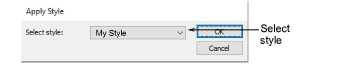
- Select a style from the droplist and click OK.
TIP
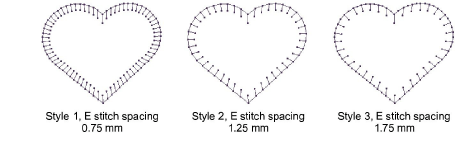
If you are using a digitizing tablet, you can quickly switch between preset styles. Each button on the puck accesses the next preset style with different spacing settings. For example, clicking Button 1 accesses <PRESET_SATIN_1>.