Open designs
 | Use Standard > Open Design to open an existing design. |
|---|---|
 | Use Standard > Open Recent Designs to open a design from a list of recently opened designs. |
EmbroideryStudio opens a comprehensive range of both ‘outline’ and ‘machine’ files.
To open a design...
- Click the Open Design icon.
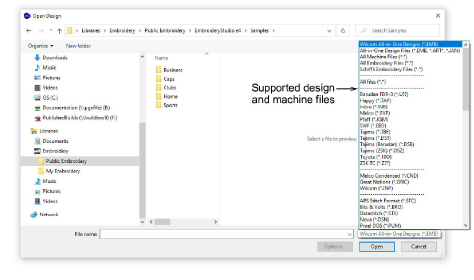
- Navigate to the design folder. The dialog filter defaults to ‘Wilcom All-in-One’ designs which displays all native EMB design files. Adjust the filter as required...
| Filter | Files |
|---|---|
| All-in-one design files | All design files supported by EmbroideryStudio including JAN and ART. |
| All machine files | Filter by machine file format only. No design files. |
| All embroidery files | All supported ‘design’ and ‘machine’ files. |
- Select a design or designs.
- To select a range, hold down Shift then select first and last.
- To select multiple items, hold down Ctrl and click.
TIP
For more information about a selected file, right-click and select Properties from the popup menu.
- For file types other than EMB or ESD, click Options and adjust recognition options as preferred.
- Click Open.
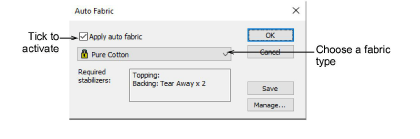
- Optionally, select Design > Auto Fabric to apply preferred fabric settings.
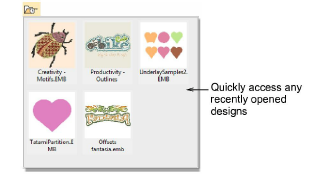
- Whenever you want to work on a recently opened design, use the Open Recent Designs for quick access.
- If the Backup Copy option is active, a backup copy of the current design file is automatically created in its previously saved form. Access the backup folder via the File > Open Backup Design command.
TIP
You can also open designs from proprietary embroidery disks, or read them from paper tape.