CorelDRAW Graphics window
 | Use Mode > CorelDRAW Graphics to import, edit or create vector artwork as a backdrop for embroidery digitizing, manual or automatic. |
|---|---|
 | In Graphics mode, click Mode > Show Embroidery to show or hide embroidery components. |
CorelDRAW Graphics window includes the entire suite of CorelDRAW® Graphics Suite drawing tools. This mode allows you to create and edit vector graphics using the CorelDRAW Graphics toolset which offers many sophisticated techniques for drafting outlines and shapes onscreen.
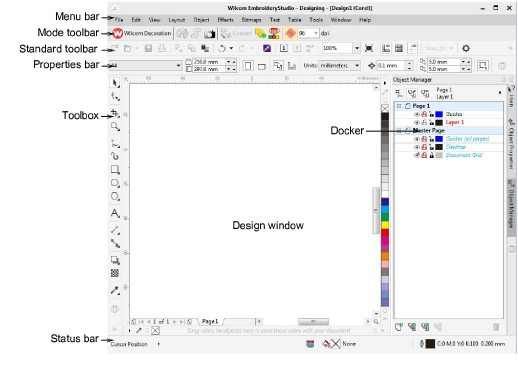
In addition to the CorelDRAW® Graphics Suite toolset, CorelDRAW Graphics provides capabilities to convert vectors and vector text directly to embroidery objects. Imported vector graphics or created text can be converted directly to embroidery designs. You can use CorelDRAW Graphics to insert or paste third-party vector graphics such as clipart for use in embroidery designs. Alternatively, insert, paste or scan bitmap artwork for use as digitizing templates or ‘backdrops’. Here are some of the prominent CorelDRAW Graphics interface elements.
| Element | Description |
|---|---|
| Menu bar | This contains application menus such as File, Edit, View, etc. |
| Mode toolbar | This contains the universal tools and icons which are visible in both Wilcom Workspace and CorelDRAW Graphics windows. |
| Standard toolbar | This contains commonly used tools and commands which are specific to and only visible in CorelDRAW Graphics. |
| Properties bar | This contains the commands and controls that relate to the active tool in the Toolbox or active object in the design window in CorelDRAW Graphics. |
| Toolbox | This contains the drawing/editing tools specific to and visible only in CorelDRAW Graphics. |
| Design window | This contains the main work area where you create and edit graphics objects as well as embroidery objects when you switch to Wilcom Workspace. |
| Color palette | This contains the graphics color palette which is specific to and only visible in CorelDRAW Graphics. |
| Docker | In CorelDRAW Graphics, this contains graphics-specific dockers. |
| Status bar | This contains current status information visible only in the CorelDRAW Graphics. |
For a detailed description of the CorelDRAW® Graphics Suite interface, refer to the electronic User Guide available via the MS Windows® Start > Programs group. Alternatively, use the online help available from the Help menu.
Note
CorelDRAW® needs to be registered before it can be used by EmbroideryStudio. Registration provides CorelDRAW® Standard Membership which gives you access to content – clipart, fonts, stock photos, templates – via Corel CONNECT. It also gives you access to the latest CorelDRAW® updates.